Enroll a device to the console
Connect a developer machine to your Prismor org so its agent activity shows up in the console and it pulls your org's signed policy. Takes about three minutes.
You'll need
- A Prismor account. Sign up if you don't have one. The free plan covers 5 devices.
prismorinstalled on the machine you're enrolling:pip install prismor- An AI coding agent on that machine. This guide uses Claude Code.
1. Create an enrollment command
In the console, open Devices and click Enroll a device. Prismor mints a one-time token and shows the full command. Click Copy.
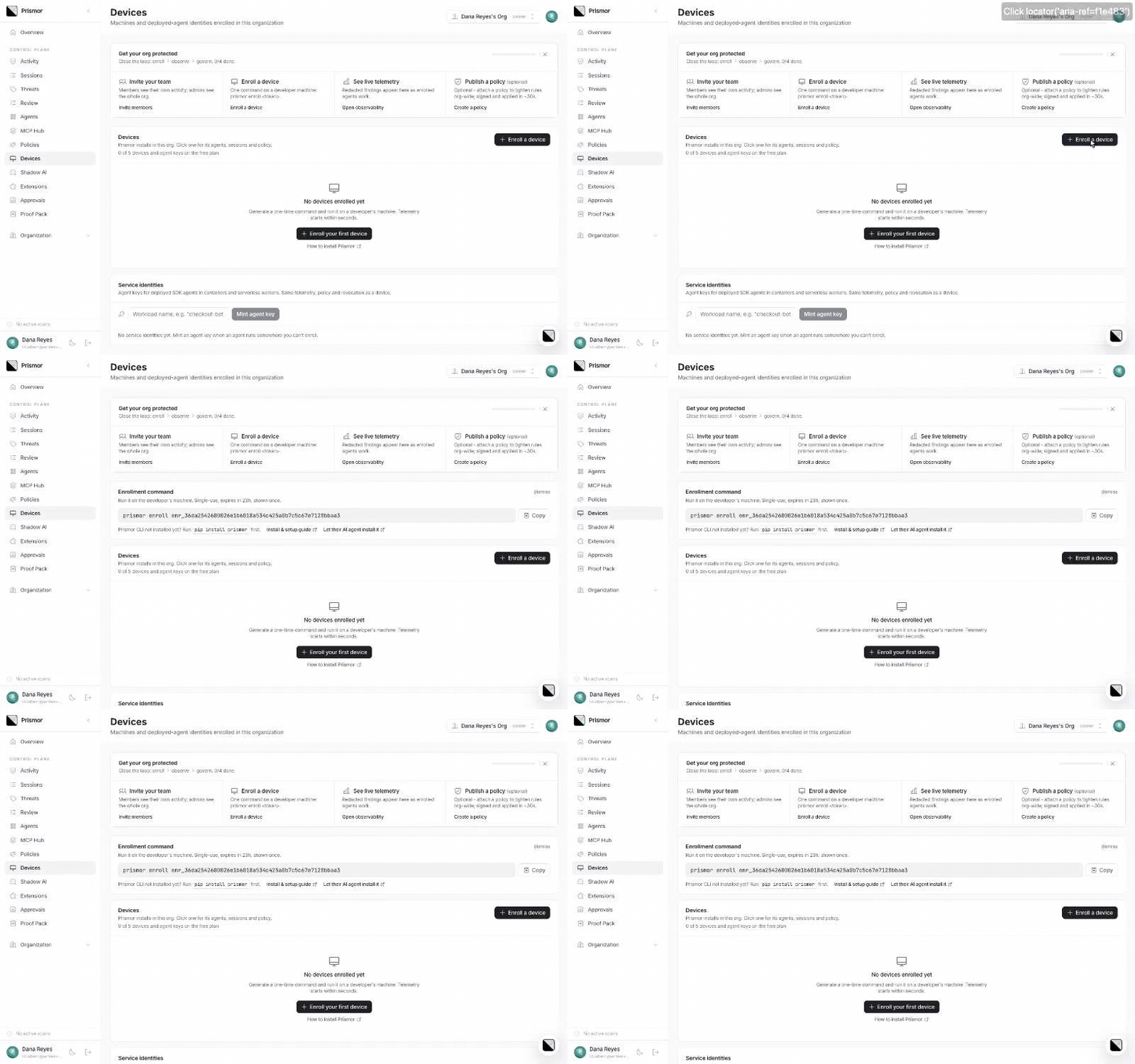
The token is single-use, expires in 24 hours and is shown once. Treat it like a password until it's used.
2. Run it on the machine
Paste the command into a terminal on the developer's machine. --label is optional and defaults to the hostname.
prismor enroll enr_… --label dana-laptop
Prismor prints the org it joined, the device id, the mode and how many rules are active. It then offers to guard every project on the machine:
Guard this machine — install Prismor into claude, cursor, … for ALL projects? [Y/n]
Answer Y on a real developer machine, so no directory is left unguarded. Answer n if you only want to guard one project. Then hook the agent in that project:
cd ~/code/acme-api
prismor setup --non-interactive --agents claude --scope project --mode observe
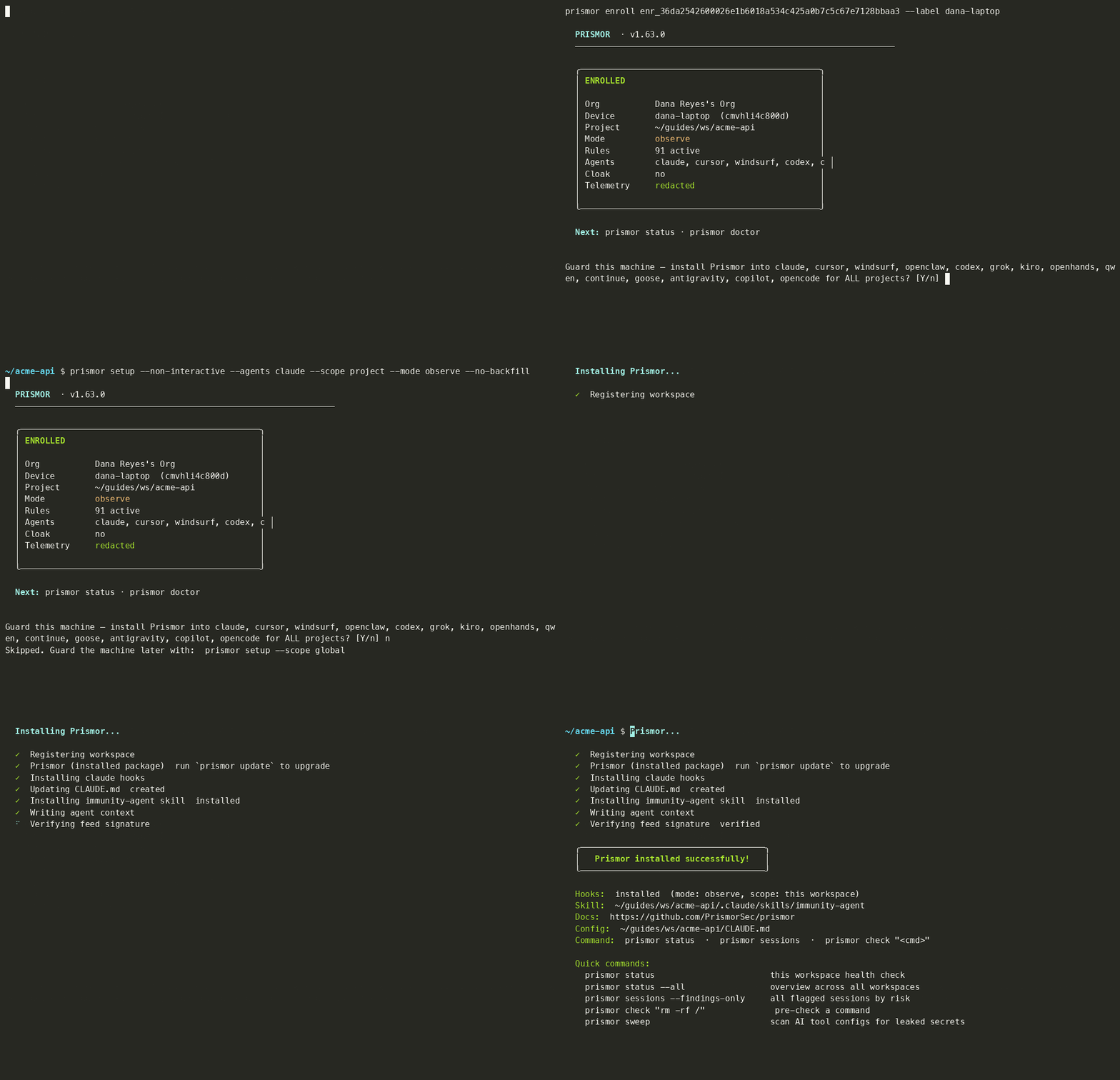
Start in observe mode. Observe logs every tool call and blocks nothing, so you see what policy would do before it does it. Authoring a Policy covers switching to enforce.
3. Check the device is online
Back in the console, the Devices list updates on its own within a few seconds. You don't need to reload. The new machine shows online with the mode it reported.
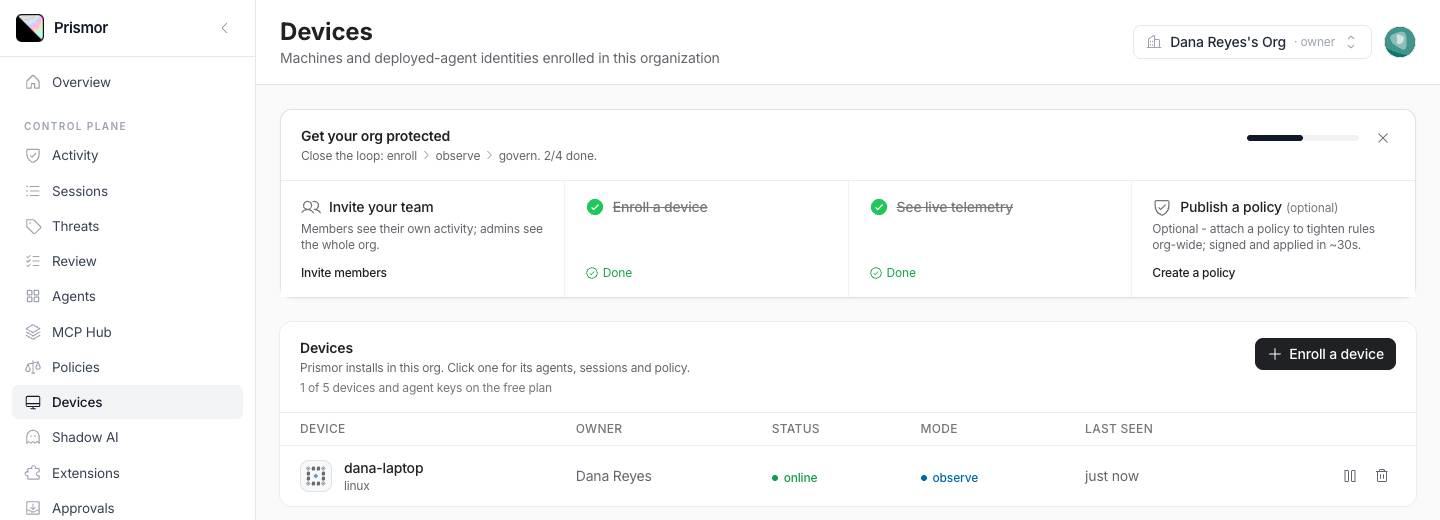
The getting-started checklist ticks off Enroll a device at the same time.
4. Run an agent and watch the session arrive
Use the agent as you normally would. Each session appears under Sessions with the agent, device, workspace, call count and model cost.
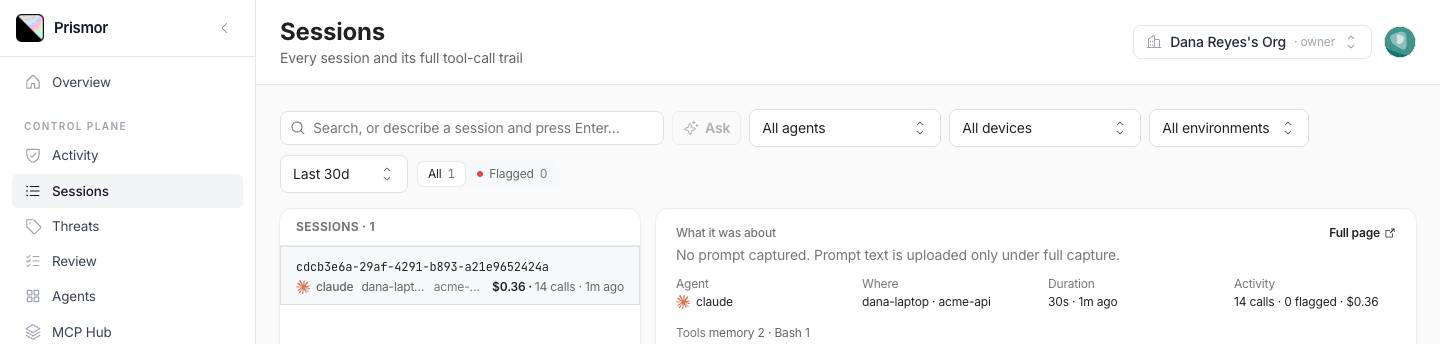
By default the device uploads redacted telemetry. Commands and file paths are masked, and prompt text isn't uploaded. That's why the session says No prompt captured.
Troubleshooting
| Symptom | Fix |
|---|---|
prismor: command not found | Install it first: pip install prismor, or see Installation. |
| Token rejected | It was already used or is more than 24 hours old. Click Enroll a device again for a new one. |
| Device shows never seen | It enrolled but hasn't called home yet. Start an agent session in a hooked workspace. |
| No sessions appear | The agent isn't hooked in that directory. Run prismor status there, or re-run setup with --scope global. |
| 402 when enrolling | The free plan's 5 devices and agent keys are used up. Revoke one under Devices, or upgrade. |
To remove a machine, click the trash icon on its row in Devices. It stops uploading and pulling policy immediately. Local protection keeps running on the last good policy.
Next
- All guides
- Connect to the Platform: how enrollment, signed policy and telemetry work underneath