Teams, SSO and agent keys
Prismor org access works in three ways: people join as members, they can sign in through your identity provider, and headless workloads get agent keys instead of a person's login. This guide covers all three and marks which steps need the Enterprise plan. Takes about ten minutes.
You'll need
- OWNER or ADMIN role in a Prismor org.
- For teammates, SSO and SCIM: the Enterprise plan. Free orgs are single-seat.
- For agent keys: any plan. Keys count toward the plan's device limit, which is 5 devices and agent keys on the free plan.
1. Invite your team
Open Organization → Members and click Invite. Enter their email and pick a role:
| Role | Can do |
|---|---|
| owner | Full control of the org. |
| admin | Sees all activity and manages policy, devices and approvals. |
| member | Sees only their own devices and agent activity. |
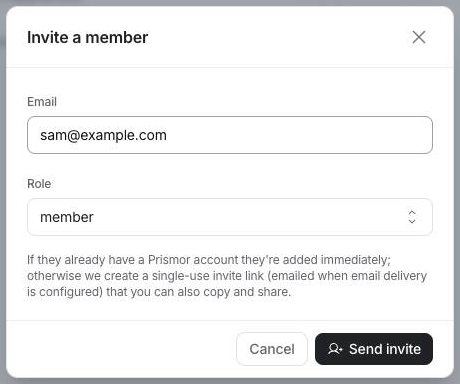
If they already have a Prismor account, they're added right away. Otherwise Prismor creates a single-use invite link. It's emailed when email delivery is configured, and you can always copy and share it yourself.
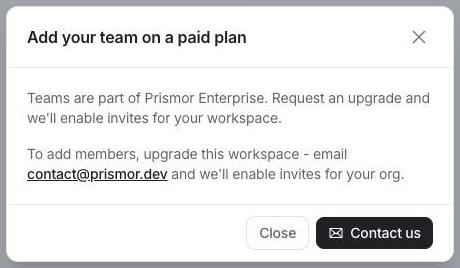
On the free plan, Send invite opens an upgrade prompt instead, because teams are an Enterprise feature:
To change someone's role later, use the role dropdown on their row.
2. Connect your identity provider (SSO)
The Single Sign-On page has no sidebar entry yet. Open it directly at /admin?tab=sso.
Under Register an OIDC identity provider, fill in:
- Email domain: the domain your team signs in with, for example
acme.com. - OIDC discovery URL: your IdP's
/.well-known/openid-configurationURL, for examplehttps://acme.okta.com/.well-known/openid-configuration. - Client ID and Client secret from the OIDC app you create in your IdP.
In the IdP, register the redirect URI shown on the page: https://www.prismor.dev/api/auth/sso/callback.
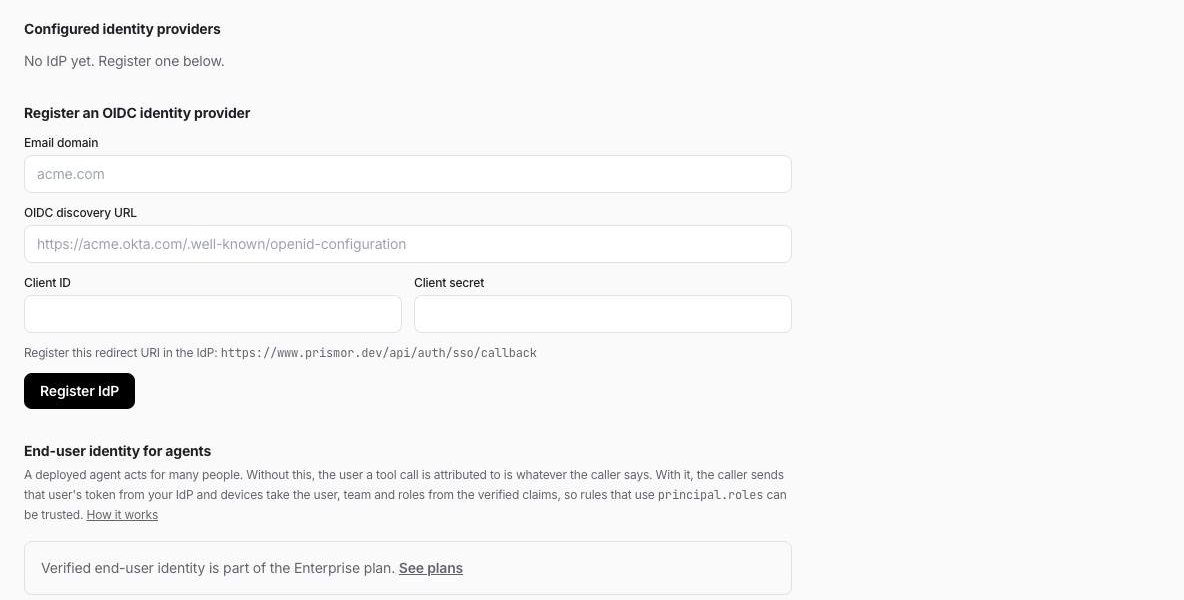
Click Register IdP, then Verify domain. Prismor gives you a DNS TXT record to add on that domain. Add it, then click I've added it. Verify. Sign-in through the IdP turns on only once the domain is verified, so no one can claim a domain they don't own.
After that, anyone who signs in with that email domain is sent to your IdP. On their first sign-in they join your org as a member, and an owner can promote them from Members.
The same page has End-user identity for agents. That lets a deployed agent pass along the IdP token of the user it acts for, so policy can trust principal.roles. It's on the Enterprise plan; see Identity verification.
3. Provision from your directory (SCIM)
SCIM keeps your org's members in sync with your directory, adding and removing them automatically. It lives under Organization → Integrations → Directory provisioning (SCIM) and needs Enterprise:

On Enterprise, Enable SCIM & issue token shows the SCIM 2.0 base URL and a bearer token for your IdP's provisioning app. The token is shown once; Rotate token issues a new one.
4. Give a headless agent its own key
A support bot running in a container has no developer machine to enroll. Give it an agent key instead. Open Devices, type a workload name under Service identities, and click Mint agent key.
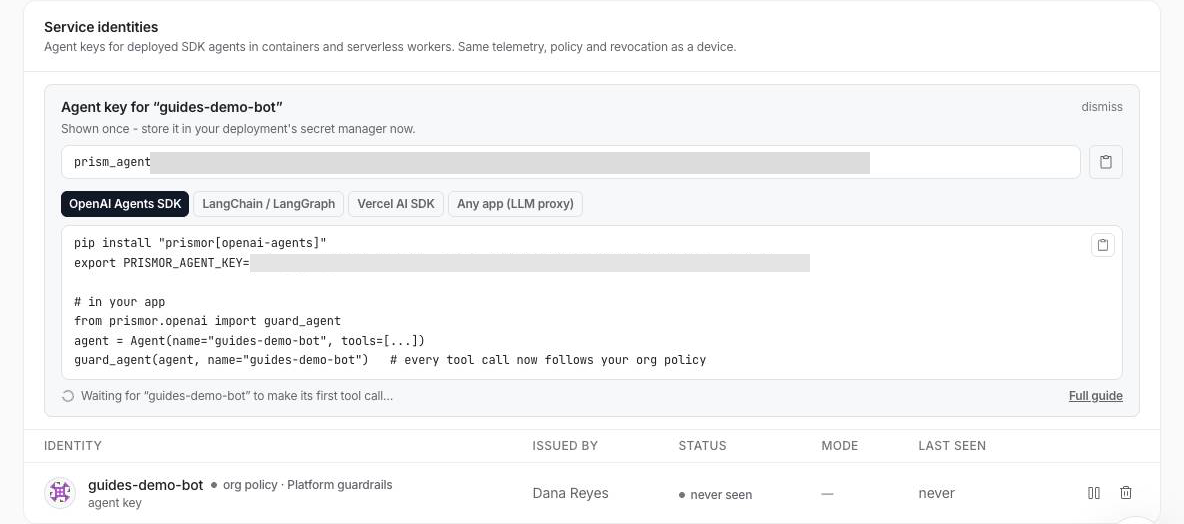
The key is shown once, so put it in your deployment's secret manager straight away. The panel also has a ready-to-paste snippet for each framework. Set the key as PRISMOR_AGENT_KEY in the workload's environment:
export PRISMOR_AGENT_KEY=prism_agent_…
prismor doctor | grep -E "enrollment|remote policy|telemetry sink"
prismor doctor should report enrollment verified … as key-authenticated service and a signed remote policy. Then run the agent. Its first guarded tool call pulls your org policy, so a safe call runs and a dangerous one is blocked under the same rules your laptops get:

The workload shows up under Service identities as online, with the mode it runs in:

To cut a workload off, click the trash icon on its row and confirm Revoke key. Its key stops working at once, and telemetry and policy pulls are rejected on the next call. To reconnect it, mint a new key.
Troubleshooting
| Symptom | Fix |
|---|---|
| Send invite opens "Add your team on a paid plan" | Free orgs are single-seat. Email [email protected] to enable Enterprise. |
| Sign in with SSO doesn't send your team to the IdP | The domain isn't verified yet. Check the TXT record, then click Verify domain again. |
| "DNS TXT record not found yet" | DNS can take a few minutes to propagate. Retry. |
| 402 when minting an agent key | The plan's device limit is reached, and keys count toward it. Revoke an unused device or key. |
| The agent key shows never seen | The workload hasn't made a guarded tool call yet, or PRISMOR_AGENT_KEY isn't set in its environment. |