Approve risky calls from Slack
Some agent actions shouldn't simply be blocked or allowed. They should wait for a person. In this guide a step_up rule holds a headless agent's tool call until someone on your team decides. You route the request to the Slack channel that owns it, then approve it and watch the agent continue. Takes about ten minutes.
You'll need
- A device or agent key enrolled in your org. See Enroll a device to the console.
- An ADMIN or OWNER role in the org. Only they can decide approvals.
- A headless agent built with the LangChain, CrewAI, browser-use or OpenAI Agents adapter. This guide uses LangChain:
pip install "prismor[langchain]". - A Slack workspace where you can install apps. You only need it for the Slack half; the console works without it.
1. Write a rule that asks instead of blocking
A rule with action: step_up holds the call for a human. Put it in the agent's workspace policy, .prismor/policy.yaml:
rules:
  - id: prod-delete-needs-approval
    severity: HIGH
    category: change_control
    title: Deleting a production resource needs a human sign-off
    event_types: [shell]
    mode: enforce
    action: step_up
    patterns:
      - "kubectl\\s+delete\\b.*-n\\s+prod\\b"
Interactive agents like Claude Code show a step_up as an inline "ask" prompt. A headless agent has no one at the keyboard, so the adapter posts an approval request to the console and waits.
2. Run the agent and watch it wait
Here's a minimal LangChain agent tool, guarded in enforce mode:
from langchain_core.tools import tool
from prismor.langchain import guard_tools


@tool
def run_shell(command: str) -> str:
    """Run a shell command on the deploy host."""
    return f"ran: {command}"


guard_tools([run_shell], mode="enforce", name="deploy-bot")

print(run_shell.invoke({"command": "kubectl get pods -n prod"}))
print(run_shell.invoke({"command": "kubectl delete deployment payments-api -n prod"}))
The first call runs. The second matches the rule, so the agent stops and waits for a decision:

It waits for 300 seconds by default (PRISMOR_APPROVAL_TIMEOUT). A denial, an expiry, a timeout or a network error all fail closed: the call is blocked, never silently allowed.
3. Find the request in the console
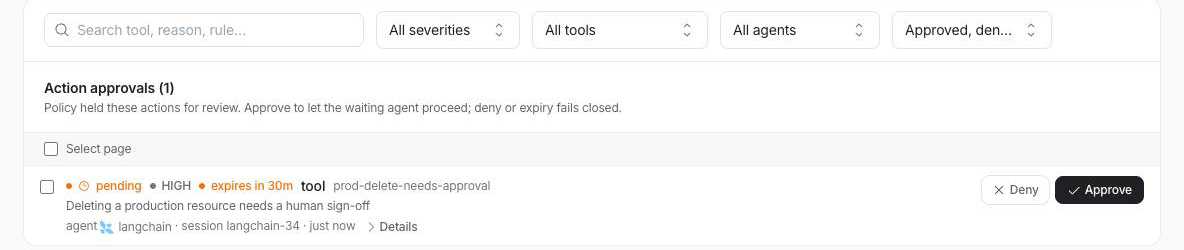
Open Approvals. The held call appears under Action approvals with its severity, the rule that held it, the agent and session, and how long it has before it expires.
4. Route requests to Slack
Below the queue, click Set up Slack routing for approvals. The routing card opens with three health checks. Until a workspace is connected it reads Slack not connected, and nothing is notified:

Click Connect Slack and install the Prismor app in your workspace. If a target channel is private, invite the Prismor bot to it.
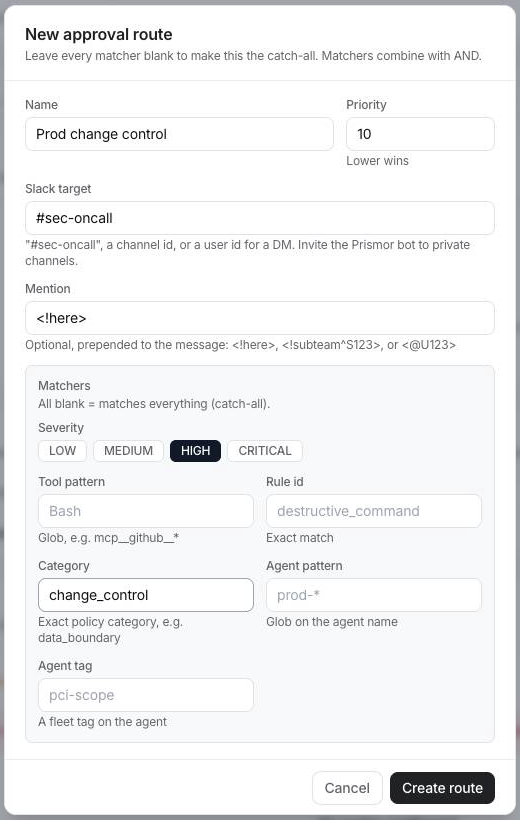
Then click Add route. A route sends matching requests to one Slack target. Fill in:
- Name and Priority: lower priority numbers are checked first.
- Slack target: a channel such as
#sec-oncall, a channel id, or a user id for a DM. - Mention (optional):
<!here>, a user group<!subteam^S123>, or a person<@U123>. - Matchers: severity, tool pattern, rule id, category, agent pattern or agent tag. Matchers combine with AND.
Then add a second route with every matcher blank and a high priority number such as 1000. That route is your catch-all. Without one, a request that matches no route notifies nobody and the agent times out.
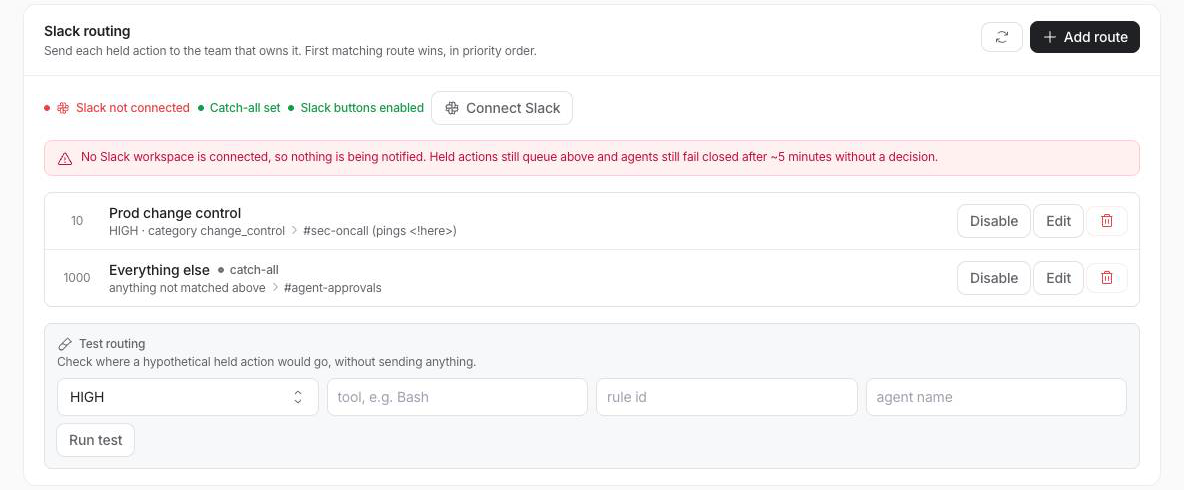
To check where a hypothetical request would land without sending anything, use Test routing under the routes.
5. Approve it
Click Approve in the console, or Approve on the Slack message once Slack is connected. The waiting agent picks up the decision on its next poll, within about 3 seconds, and runs the call:
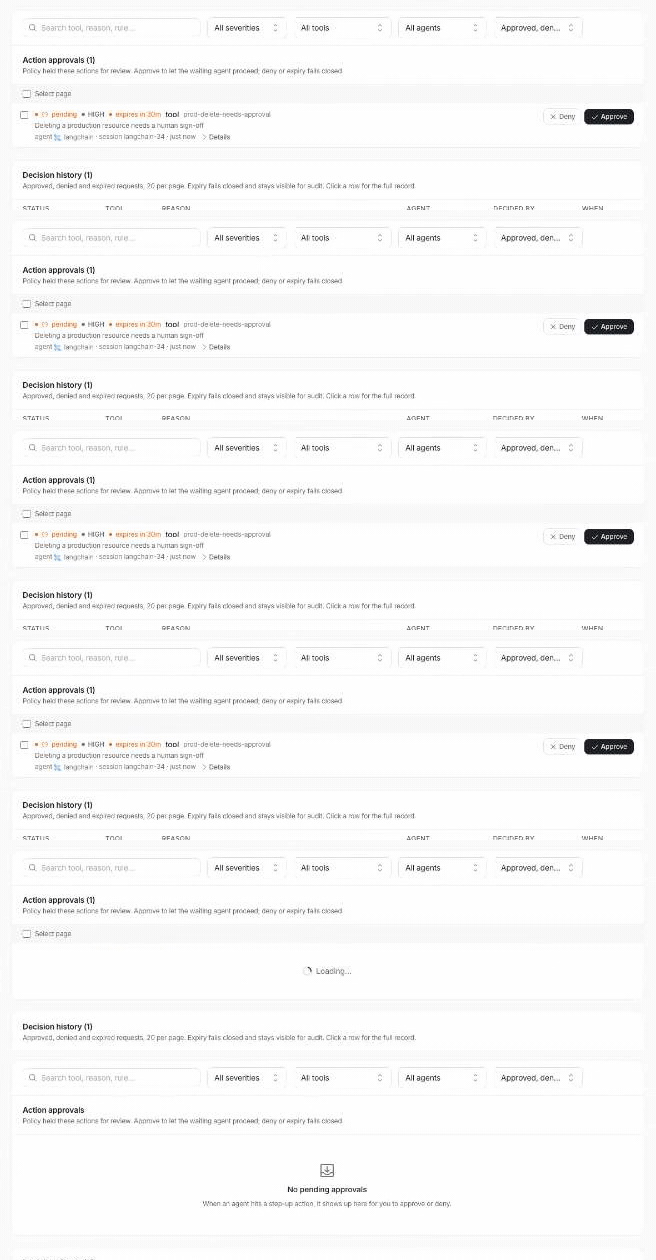
Every decision lands in Decision history and the signed audit trail, along with who decided it.
A Slack click only counts if it comes from an ADMIN or OWNER. Prismor looks up the clicker's Slack email and matches it to a Prismor account in the org; anyone else gets an error. The button is a shortcut, not a way around permissions.
Troubleshooting
| Symptom | Fix |
|---|---|
| The agent was blocked immediately, with no request in the console | The agent isn't enrolled, or PRISMOR_APPROVALS=0 is set. Without a control plane, step_up fails closed. |
| Requests queue but Slack stays quiet | Check the health strip. Slack not connected means connect it; No catch-all means the request matched no route. |
| "Not authorized" when clicking Approve in Slack | Your Slack email must match a Prismor account with ADMIN or OWNER in this org. |
| The Slack app asks for the email scope again | Reconnect Slack. Prismor needs users:read.email to verify who clicked. |
| The agent gave up before anyone decided | Raise PRISMOR_APPROVAL_TIMEOUT (seconds). The request stays in the console until it expires, but a late approval no longer reaches that run. |
Next
- Approvals: webhooks, approval links, and every runtime knob
- All guides