Investigate a session
An agent got blocked, or a session shows up flagged. This guide follows one session from the list to the exact tool call: why Prismor stopped it, whether that was right, what to change, and how to hand the evidence to a teammate.
You'll need
- At least one enrolled device that has run an agent session.
- Console access. Members see their own sessions; admins see the whole org.
The example session: a Claude Code agent was asked to list pods with kubectl --context prod get pods and hit the no-prod-kubectl rule from Write a custom rule.
1. Find the session
Open Sessions. Each row is one agent session: the agent, the device, the workspace, model cost, call count, and how many calls were flagged. Narrow the list with Flagged, the agent, device and environment filters, or the time window. You can also describe what you're looking for in the search box and press Ask.
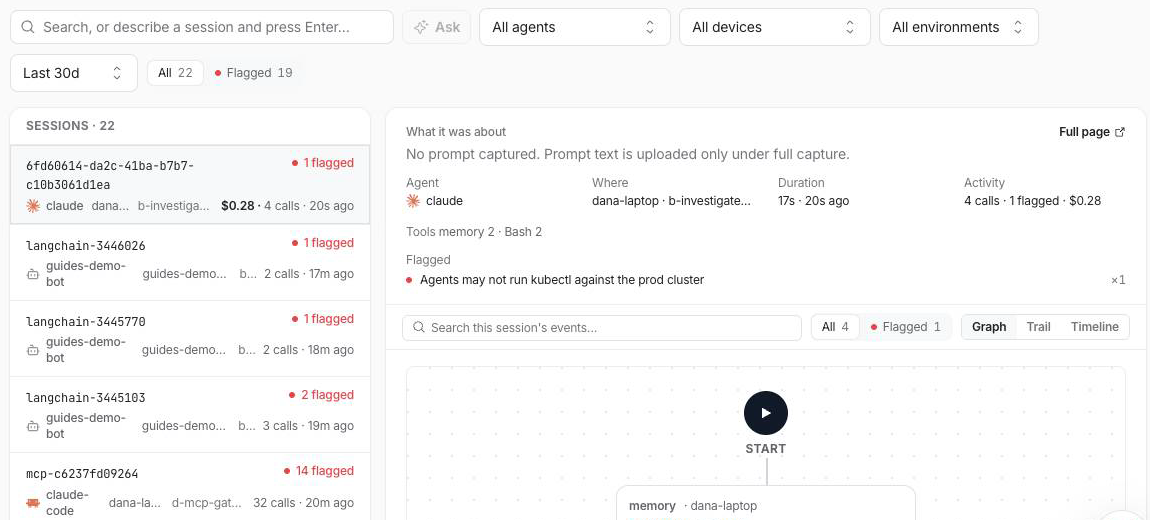
Selecting a row shows a summary on the right: where it ran, how long, what it cost, and every distinct finding under Flagged. No prompt captured is expected under the default redacted telemetry, because prompt text is only uploaded under full capture.
2. Open the full trail
Click Full page. The session page has three views of the same calls: Graph (the flow, shown here), Trail (a list) and Timeline. The panel on the left totals calls, blocked and allowed counts, guard latency, cost and tokens.
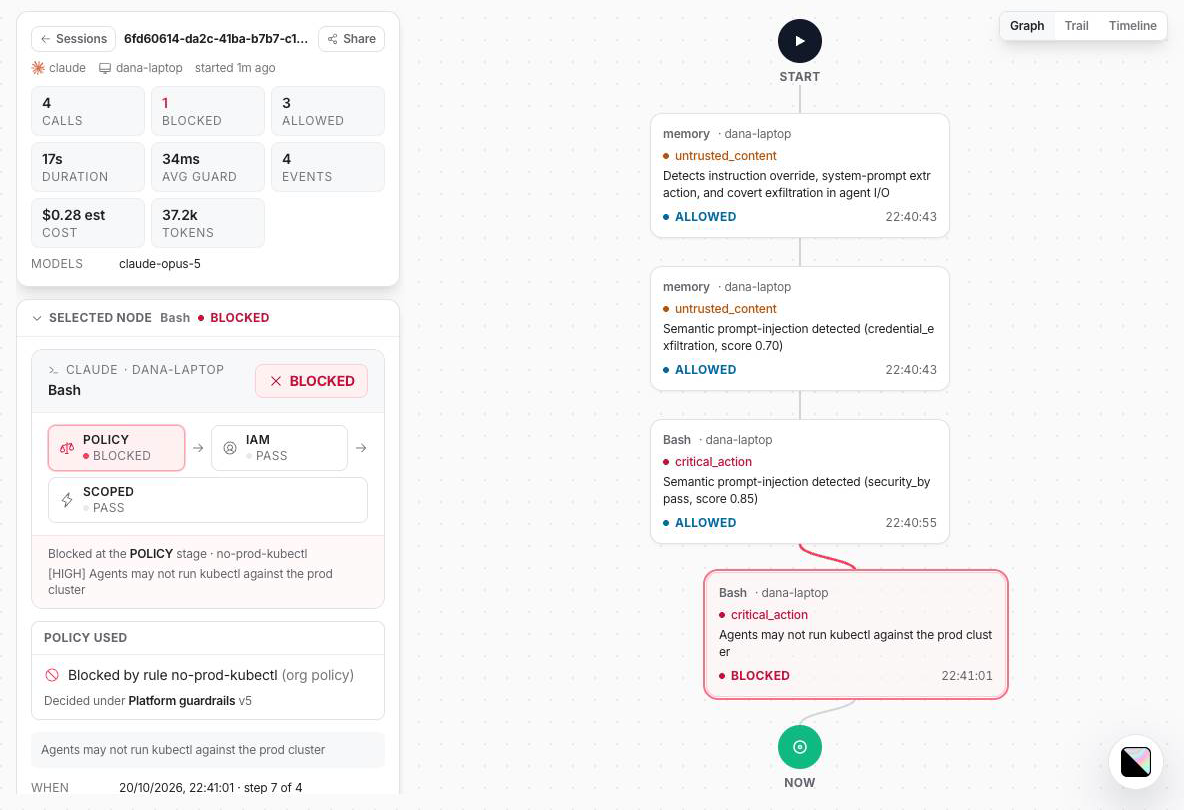
Click any node to inspect it. For the blocked call you get:
- The stage that decided it. Every call passes POLICY, then IAM, then SCOPED. Here POLICY blocked it and the later stages passed.
- The rule, its category, severity, mode and the exact pattern that matched.
- Privacy: a redacted record with an evidence hash. The console has the verdict and the fingerprint, not the raw command.
The other nodes in this session are semantic-guard findings that were allowed. Those are the ones worth triaging next.
3. Ask why
Under the node, click Why did this happen? Prismor reads the event, its session and the rule behind it, which can take up to a minute. It answers with a verdict (Likely a real catch, Likely false positive or Uncertain), the evidence, and a suggested next step.
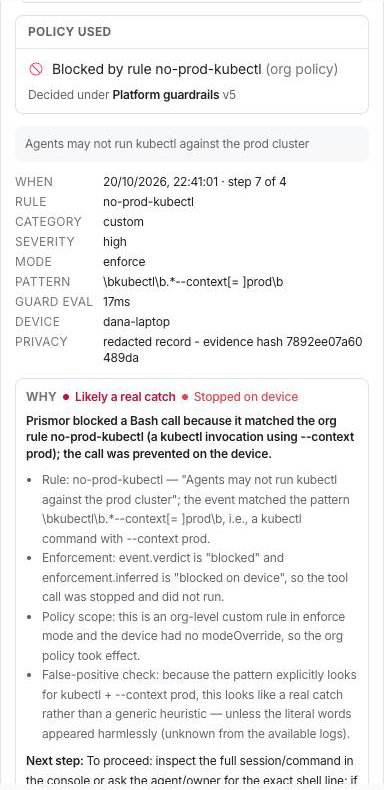
The answer is saved on the event, so the next person to open it sees the same explanation. Click Re-run after you've changed the policy.
4. Act on it
Below the explanation, Apply a rule turns what you learned into policy without leaving the page:
| Action | Use it when |
|---|---|
| Block | The call should never happen. |
| Allow | It was a false positive. Allow also lifts an earlier deny. |
| Unblock once · 15 min, this session | It's legitimate this time only. |
| Ask | A human should approve it each time. |
Each one can apply to This session, This agent, This device or the Whole org. Changes ship in the signed org policy and devices apply them on their next pull (about 30 seconds).
5. Share it
Click Share at the top of the session panel. Add people from your org, or set General access to Anyone with the link. Then Create link and Copy link.
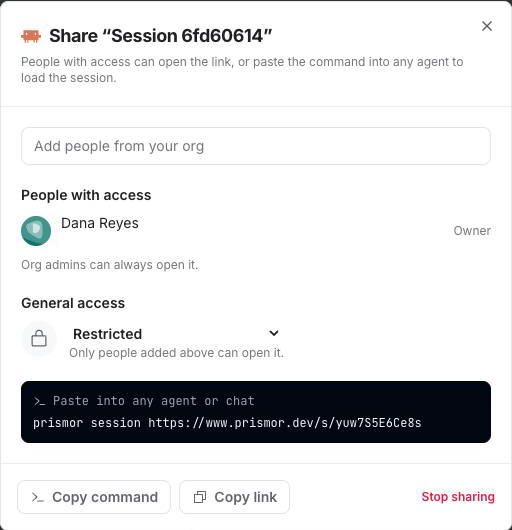
Org admins can always open a shared session. Stop sharing revokes the link.
Troubleshooting
| Symptom | Fix |
|---|---|
| The session isn't in the list | Check the time window and filters. Sessions from a device appear only after it enrolls and the agent is hooked in that workspace. |
| No prompt captured | That's the default redacted telemetry. Only flagged events and metadata leave the device. |
| Why did this happen? isn't shown | It appears on blocked, warned and flagged events, not on plain allowed calls. |
| A block appears that you didn't expect | Check Mode and Policy used on the node, then run prismor check --explain "<command>" on the device. It shows which policy layer defined the rule. |
Next
- Write a custom rule
- Dashboard: the same sessions locally, with
prismor dashboard - All guides